Showing posts with label Guide. Show all posts

Sunday, January 15, 2012

Red X mark on the wireless signal on taskbar - Wrong wireless icon

Laptop Problem

↑ Grab this Headline Animator

Hi guys,

This guide already well known to the world, but still worth to be shared. :) Let me describe about the issue on the title of this post. "Red X mark on the wireless signal bar on taskbar".

The issue : 
>>>> Occur in windows 7 <<<<
1) When you click on the signal bar, you can see available wireless connection.
2) You can connect to the network you see.(provided that the wireless network not password protected and
    available)
3) The RED X mark suppose to mean that

Friday, January 13, 2012

Download Torrent Without P2P software

Laptop Problem

↑ Grab this Headline Animator

READ THIS : DOWNLOAD TORRENT WITH HIGH SPEED
+ DOWNLOAD MANAGER + RESUMABLE 

NOTE : TORRIFIC.COM IS CLOSED... 

Alternatives to TORRIFIC.COM
ZbigZ.com

See methods below for the tricks to get resumable link in zbigz.com :

A trick if you dont get resume capability :
first click free download [open in a new tab]
--- you will get an error telling that some sites doesn't allow.....

then again click free download
--now it will download your file[resume capability- Unknown]

now..cancel your download and again click free download..
--now you have resume capability.. :D

__________________________________________________________________________

Probably some of you already know about what I'm talking about right? Or did you not believe me when I said we can download a TORRENT File using a download manager? Believe me! We can download a Torrent without using the default p2p software.I know that there're some of people out there who still don't know about this method, I recommend YOU to try it because it's more convenient than downloading using a Utorrent,

Tuesday, December 20, 2011

Reflow - Full Guide

Laptop Problem

↑ Grab this Headline Animator

*** Friendly note : Please wear anti-static wrist strap when you work with laptop/electronic component, because electrostatic will damage your laptop permanently.***
This guide is for you if your laptop still alive with LED light on but no Display = Black Screen

Dear readers,
Especially to those laptop users who experienced this problem (Black Screen = GPU Failure -one of the reason). What you should know is, every laptop are using built-in GPU. In simple word, the Graphic Card is attached to your laptop motherboard directly and can't be separate by any human (unless you use violence ??? ).

Why GPU failing??? Ok, the explanation is here. Earlier, I said your GPU is attached to your motherboard and can't be separated by any means. So it means something must be putting them together. The glue in electronic world is the solder.

Now we know about the solder. For your information, everything have its specific melting point. For this solder, the melting point is about 150 - 200 degree celcius. Check this out to know other solder melting point.
The melting point is low because of the use of tin based solder. It's cheaper than the other thats why they use it to attach a GPU to the motherboard and also attach other component to the motherboard such as capacitor.

Let us understand the condition of the solder on the motherboard. Let say you put an ICE cube on a plate, and heat it. It will melt right. If you cool it down to its freezing point, it will freeze again but lets observe its shape? does the shape of the ice cube same as before it melt? No right? So, basically, the same thing happen to the solder on your motherboard. Sometimes the heat exceed the melting point of the solder, so it will melt. But, when it cooldown and freeze, the shape maybe different. Maybe have tiny cracks that invisible to your eyes has occur. *** Even a tiny crack on the solder can make your laptop malfunction ***

Tuesday, December 13, 2011

Why Mozilla Firefox Lagging ??? -Solved

Laptop Problem

↑ Grab this Headline Animator

I'm sure all of Mozilla Firefox user will ask this question because they have experienced this problem especially when they already use Mozilla Firefox for a long time, but the cause of this problem is unidentified. For me, I feel weird because after clearing cache, clearing history, etc, still the problem persist. I tried to uninstall and reinstall my Mozilla Firefox, but still no luck. The lag keep getting worse day by day. So, I've decided to look for answer and solution for this problem.
Below is the explanation on how to solve this problem.

Solution 1 :
1) Clear your Mozilla Firefox Cache.

2) Exit Firefox.

3) Go to your profile folder - Visits this links for guide http://kb.mozillazine.org/Profile_folder_-_Firefox

4) Delete all sessionstore.js

5) Restart Firefox

Solution 2 :

Disable hyperthreading -> right click the Firefox icon click>properties>compatibility>put check mark in compatibility mode box and run in windows 98/windows me mode. This will disable hyperthreading for Firefox on a windows system. (I've tried this method and FYI, I'm using Windows 7 32bit, after I do this step, I can't run Mozilla, I mean when I double click, nothing appear.

Solution 3 :
  1. When Firefox is started,launch the Windows Task Manager (press CTRL+ALT+DEL, or right click the clock display on the Windows Taskbar and select Task Manager)
  2. Select the process tab
  3. Locate and right-click on the Firefox process
  4. Select the set affinity option from the popup menu
  5. Uncheck CPU 1 and validate with OK.
  6. You can go back to Firefox. " 
If none if the above works for you, Read this post :
99.99% Will Fix Mozilla Firefox Not Responding and Freezing Problem

    Saturday, December 10, 2011

    How to check Streamyx SNR Margin and Line Attenuation reading?

    Laptop Problem

    ↑ Grab this Headline Animator

    Firstly, what you need to know is the measurement and what is the meaning of each number you see. Refer below.

    How to know which interval is good???
    For SNR Margin:
     

    If your SNR reading is equal or less than 6dB
    - bad connection/frequent disconnections(Disconnected in 1-5 minutes) or can't connect at all
     

    If your SNR reading is between 7dB - 10dB
    -Consider average connection but still have disconnection issue
     

    If your SNR reading is between 11dB - 20dB
    -Good connection with no connectivity problem
     

    If your SNR reading is between 21dB - 28dB
    -Excellent line quality
     

    If your SNR reading is greater or equal to 29dB
    -Fantastic, never worry about anything!


    For me, 11dB-13dB is good enough and you can already connect to the internet without disconnection issue/problem because my house distance is greater than 5KM from the nearest TM. *** For you to achieve SNR reading above 20dB, your house distance from the exchange point(Nearest TM) must be less than 5KM.*** 


    There's one more thing about Streamyx Line, that is the Line Attenuation, below is the interval guide line (Basically, Line Attenuation is opposite to SNR margin value) :


    For Line attenuation:
    Greater than 60dB
    -Bad Line Quality
     

    Between 50dB - 60dB 
    -Acceptable
     

    Between 40dB - 50dB
    -Good
     

    Between 30dB - 39dB
    -Great
     

    Between 20dB - 29dB
    -Excellent
     

    Less than 20db (your house must be very near with TM)
    -Fantastic!


    How to check this information ???
    1) First, make sure you connected to your Riger Modem(wired/wireless). 

    2) Open your browser and on the address bar, write " 192.168.1.1" without the quote and press enter.
    *** Note that the192.168.1.1 is common ip address for Riger modem or any modem for streamyx ***

    3) You should see the login page. Now fill the Username and Password Field. "Username : tmadmin ; Password : tmadmin"

    4) Now, you should be seeing your modem information. Don't change anything, just browse through every tab. Because different Modem will store the Line Attenuation and SNR Margin in different tabs. 
    *** Note : Please make sure that you are connected to the internet, if not, the SNR Margin and Line Attenuation field will be blank. ***


    5) Compare your modem reading with the information I give earlier.

    Streamyx Problem - Frequent Disconnection

    Laptop Problem

    ↑ Grab this Headline Animator

    Hi guys,

    First ISSUE

    I know that this problem is a pain in the ass problem, because I already experienced this. When I apply for Streamyx for the first time, they give me a wired modem ( I need to use LAN wire to connect my laptop and PC to the modem ).
    For your information, the modem TM contractor gave to me was Riger.

    Here's my problem for the first modem.

    *** Friendly Reminder : Please check that there's no other telephone in your house connecting to your house wall socket as i know some house have more than 1 telephone wall socket. Streamyx modem can't connect to the internet if there's other devices(telephone) connected in parallel with it. all telephone must be connected from the splitter *** 

    I have frequent disconnection issue. When I say the word frequent, I mean my internet connection was never be able to connect and stay stable for more than 30 second, sometimes maximum connection time is 5 minutes. This happen during daytime(As people says the telephone cable(on the pole) is getting longer during daytime because of the heat from the sun(Physic). So, this may decrease your SNR (Signal to noise Ratio) and increase you Line Attenuation reading.


    For a Streamyx user who encounter this problem,
    Here what I do,

    1) I try to bypass the splitter and connect my modem directly to my house wall socket. ( Splitter is the small rectangle box which connecting your Home Telephone and your modem )
    See image below :

    Step 1 worked for me as the SNR Margin increase and no more disconnection occur. So I know my splitter is the problem and I change with a new one(try to find splitter with high quality).

    2)  Try to change your Telephone jet(small cable connecting your modem to the splitter and wall socket. If still doesn't solve your issue,

    3) Check if your house wiring more than 5 years, it also may cause you a problem.(your wire may be damage by weather or other causes). Change a new cable from the Telephone Pole to your house and change also your wall socket.

    4) If the above steps doesn't solve, call 100, or directly call the TM technician(FOC) not the contractor as they will charge you. If you want them to work fast, call and remind them everyday.

    Second ISSUE

    This happen when I change my MODEM to a WIRELESS RIGER Modem from a Wired Modem. It may sound silly, but this is what happen to me. I thought there'll be no more disconnection issue because I already solve my disconnection ISSUE while I'm using the wired modem.

    BUT,
    After I change my MODEM to a wireless modem, I can't have a stable connection at DAYTIME starting at 8a.m until 7p.m and I always get disconnected from the internet within 30 second or maximum 5 minute after i connected to the internet.

    SEE my SNR Reading at daytime.


    Funny thing is, after 7p.m daily, I have no disconnection issue. (Means that I can conclude that the source of the disconnection problem is not from my wiring, telephone jet) because at night the connection was great.

    So, how i solve my second issue,
    1) I call 100 and speak to TM Staff. Make sure you mention all steps you already make like in my FIRST ISSUE. Because, they will ask you to do the same thing.

    2) Let them know your SNR Reading and Line Attenuation Reading.

    3) Sometimes they will reset your port from their office. They'll ask you to restart your modem. (This doesn't solve my problem).

    4) Lastly, I ask them to send their Technician to go to my house and check the necessary thing. I call them daily. So they send a Technician only about 3 working days. The Technician climb on the Telephone pole and do something (I don't know what) but after that, the connection was splendid and MY PROBLEM SOLVED!!! Never have a disconnection issue again even though my house distance from the exchange point is more than 5KM.

    Please take the Handphone number of the technician as you can save your time to call them instead of calling the 100.

    The fastest way is to ask the technician to come but TM have their way of doing things, must go trough this first and then that and that... Never ending protocol.

    How to RESET MySQL Password

    Laptop Problem

    ↑ Grab this Headline Animator

    Follow the steps below :
    1. Stop the mysqld daemon process.
    2. Start the mysqld daemon process with the –skip-grant-tables option.
    3. Start the mysql client with the -u root option.
    4. Execute the UPDATE mysql.user SET Password=PASSWORD(‘password’) WHERE User=’root’;
    5. Execute the FLUSH PRIVILEGES; command.
    These steps reset the password for the “root” account to “password.” To change the password for a different account or to set a different password, just edit the variables in single quotes in step 4.

    If the user knows his/her existing MySQL root password, steps 1-3 are not necessary.

    *** Hope this helps!!! Guide was taken from www.tech-faq.com

    How to RESET DELL BIOS Password?

    Laptop Problem

    ↑ Grab this Headline Animator

    Dell Dimension BIOS Password Recovery

    The BIOS password may be cleared from a Dell Dimension by moving the password jumper on the motherboard.
    The password jumper’s location on a Dell Dimension motherboard can be found by reviewing the Dimension User Guides.
    For most Dell Dimension desktops, the steps to reset a BIOS password and clear all CMOS settings are:
    • Locate the 3-pin CMOS password reset jumper on the system board.
    • Remove the jumper plug from pins 1 and 2.
    • Place the jumper plug on pins 2 and 3 and wait approximately 5 seconds.
    • Replace the jumper plug on pins 1 and 2.
    delljumpers Reset Dell BIOS Password

    Dell Optiplex BIOS Password Recovery

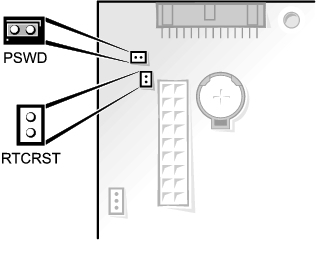
    The BIOS password may be cleared from a Dell Optiplex by removing the password jumper (PSWD) from the motherboard.
    The password jumper’s location on a Dell Optiplex motherboard can be found by reviewing the Optiplex User Guides.
    For most Dell Optiplex desktops, the steps to reset a BIOS password and clear all CMOS settings are:
    • Locate the 3-pin CMOS password reset jumper on the system board.
    • Remove the jumper plug from pins 1 and 2.
    • Place the jumper plug on pins 2 and 3 and wait approximately 5 seconds.
    • Replace the jumper plug on pins 1 and 2.

    Dell Inspiron BIOS Password Recovery

    Each Dell Inspiron has a master password that clears the BIOS password. Call Dell Technical Support at (800)624-9896 to get this number.
    Dell Technical Support will request the Service Tag and Express Service Code from the bottom of the Inspiron.
    If the current user is not the original Inspiron owner, Dell will transfer the used Inspiron’s registration from the original owner with only the Service Tag and Express Service Code from the tag on the laptop.
    To transfer a used Dell Inspiron’s registration, fill out the Transfer of Ownership form on Dell’s web site.

    Dell Latitude BIOS Password Recovery

    Christophe Grenier wrote a program that calculates the master BIOS password for Dell Latitudes from the Service Tag number. That program is available here.
    If a Latitude cannot be booted to run this program, call Dell Technical Support at (800)624-9896 to get the master password.
    Dell Technical Support will request the Service Tag and Express Service Code from the bottom of the Latitude.
    If the current user is not the original Latitude owner, Dell will transfer the used Latitude’s registration from the original owner with only the Service Tag and Express Service Code from the tag on the laptop.
    To transfer a used Dell Latitude’s registration, fill out the Transfer of Ownership form on Dell’s web site.

    This guide was taken from www.tec-faq.com

    How to Reset an IBM ThinkPad Laptop Password?

    Laptop Problem

    ↑ Grab this Headline Animator

    Good day dear readers,
    For you information, an IBM ThinkPad laptop can have three hardware password sets:
    • Power-On Password
    • Hard Disk Password
    • Supervisor Password

    Power-On Password

    RT/CMOS RAM has 8 bytes reserved for the power-on password and the check character. The 8 bytes are initialized to hex 00. The microprocessor can access these bytes only during POST. After POST is completed, if a power-on password is installed, the password bytes are locked and no program can access them.
    During power-on password installation, the password (1 to 7 characters) is stored in the security space.
    Installing the password is a function of the built-in system program Easy-Setup. The power-on password does not appear on the screen when it is installed, changed, or removed. After the power-on password has been installed, it can be changed or removed only during POST.

    Hard Disk Password

    The hard-disk password (HDP) prevents unauthorized persons from accessing the data on the removable hard disk drive.

    Supervisor Password

    The supervisor password prevents unauthorized persons from changing the system information in Easy-Setup.

    How to Reset an IBM ThinkPad Power On Password using Software

    If the user can boot the IBM ThinkPad, KeyMaker will recover the BIOS password.

    How to Reset an IBM ThinkPad Power On Password Using Hardware

    If the ThinkPad cannot be booted, reset the IBM ThinkPad password via hardware.
    If only the power-on password is set, do the following to remove the power-on password.
    1. Power off the computer
    2. Remove the DIMM cover on the bottom side of the computer.
    3. Short circuit the two password pads or put a jumper on the contacts to short the circuit.
    4. Under the short circuit condition, power on the computer and wait until the POST ends. After the POST ends, the password prompt does not appear. The power-on password is removed.
    5. Reinstall the DIMM cover.
    If both the power-on password and the supervisor password are set, do the following to remove the passwords:
    1. Press and hold F1 to power on the computer.
    2. Enter the supervisor password. The Easy-Setup menu appears.
    3. Click the Password icon.
    4. Click the Power on icon.
    5. Enter the supervisor password and press the Space bar.
    6. Press Enter twice.
    7. Click Exit then click Restart.
    Guide taken from www.tech-faq.com

      How to recover ACER BIOS Password

      Laptop Problem

      ↑ Grab this Headline Animator

      • Click the Start button
      • Click the All Programs menu item
      • Click the Empowering Technology menu item
      • Click the Acer eSettings Management menu item
      • Once inside Acer eSettings Management, click the Security button.

      Sending a Computer to Acer for a BIOS Password Reset

      Acer refuses to assist customers with BIOS password issues. The only option they discuss involves sending the laptop to them and paying a $100 fee.

       How to Reset an Acer BIOS PasswordHere is a copy of an email from Acer Support:
      Thank you for contacting Acer America. I apologize for the delay in responding to your inquiry. In order to have the BIOS or hard disk password removed (This include any biometric security), the notebook will need to come in to our repair depot for password removal. This service is not covered by warranty and unfortunately there is no other recourse to remove a BIOS or HDD password from the notebook. The flat fee for BIOS password removal is $100.00 US dollars plus tax. If it is a BIOS or HDD password and you would like us to service it for you, please contact our telephone technical support line at 1-800-816-2237. Hours of operation are 7am-9pm CST Monday-Friday and 8am-5pm CST Saturday and Sunday, excluding holidays.

      Resetting an Acer BIOS Password with Hardware

      If the user cannot boot the Acer and does not want to send his/her computer back to Acer for an unknown amount of time, he/she can try to reset the BIOS password via hardware.
      Forum members have reported that they were able to remove their Acer BIOS passwords by simply opening their notebooks and removing the CMOS batteries for 30 minutes.
      Once the BIOS password is removed, press the key during POST (Power On Self Test) to enter the Acer BIOS setup.

      Hope this help!!!
      *** Taken from www.tech-faq.com ***

      Recover Laptop BIOS Password

      Laptop Problem

      ↑ Grab this Headline Animator

      Good day everybody,

      The best method for resetting a BIOS password depends on what BIOS the computer has. Common BIOSs include AMI, Award, IBM, and Phoenix. Numerous other BIOSs exist, but these are the most common.
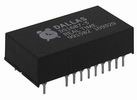
      Dallas Semiconductor DS1687 3 How to Reset a BIOS Password
      Some BIOSs allow the user to require a password before the system will boot or before the BIOS setup may be accessed.
      The general solution categories to reset a BIOS password are:
      • Using a Backdoor BIOS Password
      • Resetting the BIOS Password using Software
      • Resetting the BIOS Password using Hardware
      • Vendor Specific Solutions for resetting the BIOS Password

      Using a Backdoor BIOS Password

      Some BIOS manufacturers implement a backdoor password. The backdoor password is a BIOS password that works no matter what the BIOS password is set to. These passwords are typically used for testing and maintenance. Manufacturers typically change the backdoor BIOS passwords from time to time.

      AMI Backdoor BIOS Passwords

      Reported AMI backdoor BIOS passwords include A.M.I., AAAMMMIII, AMI?SW , AMI_SW, BIOS, CONDO, HEWITT RAND, LKWPETER, MI, and PASSWORD.

      Award Backdoor BIOS Passwords

      One reported Award backdoor BIOS password is eight spaces. Other reported Award backdoor BIOS passwords include 01322222, 589589, 589721, 595595, 598598 , ALFAROME, ALLY, ALLy, aLLY, aLLy, aPAf, award, AWARD PW, AWARD SW, AWARD?SW, AWARD_PW, AWARD_SW, AWKWARD, awkward, BIOSTAR, CONCAT, CONDO, Condo, condo, d8on, djonet, HLT, J256, J262, j262, j322, j332, J64, KDD, LKWPETER, Lkwpeter, PINT, pint, SER, SKY_FOX, SYXZ, syxz, TTPTHA, ZAAAADA, ZAAADA, ZBAAACA, and ZJAAADC.

      Phoenix Backdoor BIOS Passwords

      Reported Phoenix BIOS backdoor passwords include BIOS, CMOS, phoenix, and PHOENIX.

      Backdoor BIOS Passwords from Other Manufacturers

      Reported BIOS backdoor passwords for other manufacturers include:
      Manufacturer BIOS Password
      VOBIS & IBM merlin
      Dell Dell
      Biostar Biostar
      Compaq Compaq
      Enox xo11nE
      Epox central
      Freetech Posterie
      IWill iwill
      Jetway spooml
      Packard Bell bell9
      QDI QDI
      Siemens SKY_FOX
      SOYO SY_MB
      TMC BIGO
      Toshiba Toshiba
      Remember that the passwords listed may not be the actual backdoor BIOS passwords. These backdoor BIOS passwords may simply have the same checksum as the real ones. For Award BIOS, this checksum is stored at F000:EC60.

      Resetting the BIOS Password with Software

      Every system must store the BIOS password information somewhere. If the user can access the machine after it has been booted successfully, he/she may be able to view the BIOS password. He/she must know the memory address where the BIOS password is stored and the format in which the BIOS password is stored or have a program that knows these things.
      Users can write their own program to read the BIOS password from the CMOS memory on a PC by writing the address of the byte of CMOS memory that they wish to read in port 0×370, then reading port 0×371′s contents.
      !BIOS recovers the BIOS password for most common BIOS versions, including IBM, American Megatrends Inc., Award, and Phoenix.
      CmosPwd recovers the BIOS password for the following BIOS versions:
      • ACER/IBM BIOS
      • AMI BIOS
      • AMI WinBIOS 2.5
      • Award 4.5x/4.6x/6.0
      • Compaq (1992)
      • Compaq (New version)
      • IBM (PS/2, Activa, Thinkpad)
      • Packard Bell
      • Phoenix 1.00.09.AC0 (1994), a486 1.03, 1.04, 1.10 A03, 4.05 rev 1.02.943, 4.06 rev 1.13.1107
      • Phoenix 4 release 6 (User)
      • Gateway Solo – Phoenix 4.0 release 6
      • Toshiba
      • Zenith AMI

      Resetting the BIOS Password via Hardware

      If a user cannot access the machine after it has been powered up, it is still possible to get past the BIOS password. The BIOS password is stored in CMOS memory that a small battery maintains while the PC is off, which is attached to the motherboard. If the user removes this battery, all CMOS information (including the BIOS password) will be lost. The user must re-enter the correct CMOS setup information to use the machine. The machine’s owner or user will most likely be alarmed when he/she discovers that the BIOS password has been deleted.
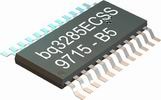
      ti benchmarq bq3285ecss How to Reset a BIOS Password
      The battery is soldered to some motherboards, making it difficult to remove. If this is the case, there is another alternative. Somewhere on the motherboard is a jumper that will clear the BIOS password. If the user has the motherboard documentation, he/she will know where that jumper is. If not, the jumper may be labeled on the motherboard. If neither of these is the case, try guessing which jumper is the correct one. This jumper is usually standing alone near the battery. If the user cannot locate the jumper, he/she might short both of the points where the battery connects to the motherboard.
      If all else fails, clear the BIOS password by resetting the RTC (Real Time Clock) IC (Integrated Circuit) on the motherboard.
      Many RTCs require an external battery. If so, clear the BIOS password by removing the RTC from the socket and reseating it.
      RTCs that require external batteries include:
      Most RTC chips with integrated batteries can be reset to clear the BIOS password by shorting two pins together for a few seconds.
      There are a few options for some chips due to the testing that various people in the field have carried out. Remember to remove power from the system before shorting these pins.
      RTC Chip Pins
      Dallas DS1287ATI benchmarq bp3287AMT 3 (N.C.) and 21 (NC/RCL)
      Chips & Technologies P82C206 12 (GND) and 32 (5V)-or-74 (GND) and 75 (5V)
      OPTi F82C206 3 and 26
      Dallas Semiconductor DS12887A 3 (N.C.) and 21 (RCLR)
      Users should be able to figure out how to reset the BIOS password stored in most RTC (Real Time Clock) chips by reading the manufacturers data sheet for that RTC. Some RTCs, like the Dallas DS1287 and TI benchmarq bq3287mt, cannot be cleared. The solution for resetting the BIOS password on systems with those RTCs is to purchase a replacement RTC chip.

      Vendor Specific Solutions for Resetting the BIOS Password

      Resetting a Dell BIOS Password

      For information on how to recover a Dell BIOS password, please refer to How do I reset Dell BIOS password?

      Resetting a Toshiba BIOS Password

      KeyDisk resets the BIOS password on Toshiba laptops.
      Older Toshiba laptops can boot without their power-on BIOS password if a dongle is attached to the parallel port that crosses a number of pins. The pin out is:
      Pins
      1-5-10
      2-11
      3-17
      4-12
      6-16
      7-13
      8-14
      9-15
      Some Toshibas can bypass the startup BIOS password if the user holds down the key while booting the system.

      Resetting an IBM Aptiva BIOS Password

      Some IBM Aptivas can bypass the startup BIOS password if both mouse buttons are pressed repeatedly while booting the system.

      Resetting an Acer BIOS Password

      For information on how to recover an Acer BIOS password, please refer to How to reset Acer BIOS Password.

      Guide taken from www.tech-faq.com 
      Forgot BIOS Password - PC

      Laptop Problem

      ↑ Grab this Headline Animator

      Hi guys, for those who own a PC and forgot their BIOS Password( if u set ), here are the solution and hopefully it works for you :

      This information is intended for experienced users. It is not intended for basic users, hackers, or computer thieves. Please do not try any of following procedures if you are not familiar with computer hardware. I'll not be responsible for the use or misuse of this information, including personal injury, loss of data or hardware damage. So use it at your own risk.

      A. By Using the Motherboard Jumper:
      In most motherboards CMOS battery is soldered, which makes it difficult to remove the battery. In this case we use another method.

      *** Friendly Reminder : Please turn off your PC and unplug your power cable from the socket before you do STEP A. This step require you to open your PC CPU Casing, please equip yourself with proper tools ***

      Almost all motherboards contain a jumper that can clear all CMOS settings along with the BIOS password. The location of this jumper varies depending upon the motherboard brand. You should read your motherboard manual to check its location. If you don't have the manual then look for the jumpers near the CMOS battery. Most of the manufacturer label the jumper as CLR, CLEAR, CLEAR CMOS, etc.

      When you find the jumper, look carefully.  There will be 3 pins and the jumper will be joining the center pin to either left or right pin. What you need to do, is remove the jumper and join the center pin to the opposite pin. e.g. if the jumper joins center pin to left pin, then remove it and join center pin to right pin. Now wait for a few seconds and then again remove the jumper and join the center pin to left pin.


      B. By Using Software:

      I have found that BIOS/CMOS Password Recovery Tool is the most effective.:
      BIOS/CMOS Password Recovery Tool is a program that works instantly to remove any lost or forgotten BIOS/CMOS password. Simply boot your PC to DOS and execute the program, and get access to forgotten BIOS/CMOS passwords in just seconds

      Windows Media Player is not responding

      Laptop Problem

      ↑ Grab this Headline Animator

      Problem : 
      Its freezes the computer up so bad until you have to manually power down because it says "not responding".

      Laptop Model : CQ62-219WM

      Operating System : Windows 7 home premium 64-bit

      Solution :

      It may be worth trying to reset Windows Media Player as follows.

      Click the Start Menu and select Control Panel.  Open Programs and Features, Click 'Turn Windows features on or off', open up Media Features and "untick" Windows Media Player.  Click Yes then OK and then restart the notebook.

      When Windows has restarted, click the Start Menu and select Control Panel.  Open Programs and Features, Click 'Turn Windows features on or off', open up Media Features and "tick" Windows Media Player.  Click Yes then OK and when WMP has finished installing, restart the notebook again.

      Next, carry out the following process to force Windows Media Player to re-build the Library Database.

      A useful utility for viewing all the files on your PC is called Free Commander, on the link below, as it displays folders that the Operating System normally hides and has a good search function.

      http://www.snapfiles.com/php/download.php?id=107872&a=7122339&tag=601108&loc=10

      This is a zipped file.  If you don't have an extraction utility installed, download and install 7-Zip which can be used to open this so that you can run the installer.

      Make sure Windows Media Player and Windows Media Centre are closed.

      Launch Free Commander, double click Users, double click 'your user name', double click Local Settings, double click Application Data, double click Microsoft and double click Media Player.  Delete all the files that have the extension .wmdb - do not delete any folders.

      Close Free Commander and open Windows Media Player - it will now begin to re-build the library database which may take a while.

      Credits to Dean for the solution.

      DVD/CD-ROM device driver corrupted ( HP Laptop)

      Laptop Problem

      ↑ Grab this Headline Animator

      I'm not sure if the solution can be used on other brand of laptop with the same problem, but if someone do try, please comment to let us know. :)
       
      Note : 
      This solution is taken from http://h30434.www3.hp.com/t5/Notebook-Hardware/DVD-CD-ROM-device-driver-corrupted and hopefully it can solve your issue.

      Question 1 :
       
      I have a HP Pavilion dv6853cl notebook, Vista (64-bit). The DVD drive is listed in Device Manager as Slimtype DVD A DS8A1H ATA Device and reports "Windows cannot load the device driver for this hardware. The driver may be corrupted or missing. (Code 39)".

      Is there a way to download a new/updated driver or a registry update for this device that will resolve this problem?

      Solution : 

      Optical drives do not need drivers as such to be seen in the device manager....they are activated by the OS at a very low level. But XP and Vista are prone to occasionally losing them and you need to do a registry hack involving removal of the upper and lower filters. Here is the info you need:

      UPDATE
      HKEY_LOCAL_MACHINE\SYSTEM\CurrentControlSet\Control\Class\{4D36E965-E325-11­CE-BFC1-08002BE10318}
      Apparently it seems that this is an age old fix for even XP systems. If you venture to the registry key above by doing the following steps:
      1. Click on the start menu.
      2. If this is a Vista machine in the search box type in “regedit” without the quotation marks.
      3. Maximize the HKLM and then go ahead and browse until you reach the key listed above.
      4. In the right panel you’ll see something along the lines of “UpperFilter” and “LowerFilter” you want to click on each “filter” key and hit delete. Click yes when it asks to confirm if you wish to delete the key.
      5. Restart Windows.
      Credits to Distinguished Professor for the solution for question 1.

      Question 2 :

      I am having trouble with a CD - Rom driver on my HP laptop.  Specifically, I am dealing with a Slimtype DVD A DS8AZH ATA device.  It has been giving me trouble for some time, I even returned the computer to HP, got the mobo replaced, and it is still giving me problems.  After uninstalling the device and restarting the computer, I get an error prompt stating:

      'Device driver software was not succesfully installed'
      Please consult with your device manufacturer for assistance getting this device installed.

       I do not to send my computer off for another three weeks, espcially if HP isnt going to fix my problem.  Can anyone please help me or at least point me in the right direction? 

      Thanks a bunch!

      Solution :  


      code 39 means that the filters for the DVD rom drive have become comprimised. You must have installed some type of burning software. you need to make a registry edit.

      WARNING: EDITING THE REGISTRY MAY CAUSE UNDESIRABLE AFFECTS ON YOUR SYSTEM. FOLLOW THESE STEPS EXACTLY AS SHOWN

      1)Click start
      2)type "regedit" without the quotes
      3)above in the programs list right click on regedit and click "run as administrator"
      4)click file and click save to make a backup of the registry incase you mess up
      5) go to this path
      HKEY_LOCAL_MACHINE\SYSTEM\CurrentControlSet\Control\Class\{4D36E965-E325-11CE-BFC1-08002BE10318}
       6)click on the file that states 4D36E965-E325-11CE-BFC1-08002BE10318 and look at the right hand side
      7)right click and remove anything that says "upper filters" and/or "lower filters"
      8)close out of registry editor and restart the notebook
      9)Your issue should be resolved

      Your burning software will need to be reinstalled.

      Credits to for the solution for question 2.


      How to check SATA Chipset?

      Laptop Problem

      ↑ Grab this Headline Animator

      This guide will show you how to choose the right SATA driver to install Windows XP. . Also thanks to to other contributors especially Gustav Rock(CQ42) and Vanilla Blue (CQ40/CQ35/Acer).

      NOTE:
      1. Do this at your own risk.
      2. You are recommended to make recovery first:

      For windows Vista: Click Here for the guide
      For Windows 7     : Click Here for the guide
      STEP to be done : 

      1. STEP 1: Install CPU-Z (to Identify the right SATA Driver)
      2. STEP 2: Identify Your Chipset
      3. STEP 3: Choosing the SATA Diver and Slipstream Guide.

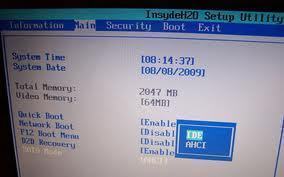
      Note. For certain model such as ACER 4530 please check on your BIOS to enable AHCI mode from IDE mode. Sometimes there are model which do not need to use SATA driver.

      Friday, December 9, 2011

      HDMI Sound / Audio Problem in Windows 7

      Laptop Problem

      ↑ Grab this Headline Animator

      I hope the solution below can solve your problem. :)

      The issue was when I connected my laptop to the sony bravia via the HDMI the sound were coming from my laptop and not my TV. After click here and there searching for correct setting, I  finally found the solution in the control panel.

      What I did back then was, I open the control panel and clicked on "Hardware and Sound" then click on "Sound", then right click the HDMI and choose "set it as default". Apply then finish.

      The problem solved for me. Hope it solved for you too!

      Thursday, December 8, 2011

      Black Bar On left and Right of screen - Games not full screen

      Laptop Problem

      ↑ Grab this Headline Animator

      Hi guys,

      I believe most of us who use Laptop with any ATI Graphic Card will face this problem. Which is When you run your game for example Warcraft III or any game with fullscreen mode, the screen didn't stretch and you can see black lines with the width about 3CM on the left and right of your games windows. This is caused by your graphic card setting which force your games to run under the specified aspect ratio.

      Refer picture below if you don't understand what I meant about the game run under Aspect Ratio.

      Laptop Black Screen

      Laptop Problem

      ↑ Grab this Headline Animator

      Hi guys,

      There're many forum out there discuss about this topic "my laptop screen turned black even though the laptop is still running."

      Turns out it has something to do with excessive charge stored within the components of the laptop. In this situation there is a failsafe that will stop current going to different parts and because our laptop screen uses more power than anything, so it is most often affected.

      Here's what you can do before you take your laptop to the repair shop or any centre.
      1) Unplug the power, take out your laptop battery, and
      2) Hold down the power button for around 60seconds.
      *** This will release any excess charge built up in the machine. ***
      3) Plug your charger back to your laptop and try to turn it on.

      If the above solution doesn't work for you, maybe you have different issues with your screen. Most screen issue else than the topic above will not allow your laptop to boot with all lights on and all the little 'plink' noises.

      *** If your laptop have a shortcut eg : Fn + F7 like in ASUS K50IN (F7 = blue rectangle box with X in the middle), make sure you didn't accidentally press it because if you do, then the screen will turn black ***

      Wednesday, December 7, 2011

      File Hidden by Virus (Pendrive)

      Laptop Problem

      ↑ Grab this Headline Animator


       I believe all of us must be frustrated with the virus, worm, trojan and malware because sometimes so hard to remove and they will cause you a lot of trouble. not only you but also your friend(if they borrow your pendrive or hard drive filled with those culprit(virus.win32.vb.dg).
      Our case here today is "How to make your hidden file emerge from the depth of invisibility?". Because, even though you go to Folder Option > View > Show hidden File, you still can't see the folder inside your hard drive. 
      Now, lets get started.
      First we use the manual method.(I prefer this method because, you can learn something instead of using software + few clicks and you end up with nothing) What i mean is, isn't it great to learn how to use command prompt?
      Step 1:
      Run "cmd" (alternative way to open =  Windows Button + r, type "cmd" and enter)
      >>> For windows XP User, Click Start > All Program > Accesories > CMD/Command Prompt. Then follow steps 2.

      >>> For windows 7/Vista, Click on the Start button(bottom left of laptop screen) and follow instruction below.


      Step 2:
      Type "attrib<space>f:*.*<space>/d<space>/s<space>-h<space>-r<space>-s"

      Note that the "f" is your drive letter. You can change it to C: , D: , depending on which drives infected by the virus.

      refer to screenshot below
       Step 3:
      After you type the command, press enter. The times for this process to complete depending how big your storage and how much data inside. The larger occupied data on our drive, the longer the process will be.
       See Screen shot below.

       
       If you curious about the command above, you can type "help attrib" and press enter. There you can see what's the meaning behind the -s -h /d etc...
      Hope this helps!!!

      Slipstreaming SATA Driver to Windows XP CD

      Laptop Problem

      ↑ Grab this Headline Animator

      This guide already posted on many blog( i think ), but I still want to post this topic in case somebody still want to know how to do it.

      This guide not necessarily only for Compact CQ40, it also may work on Laptop that doesn't have the setting for Harddisk in BIOS. What I mean is, we can't change the setting from AHCI to ATA in your BIOS setting page( This is done to make sure the Blue Screen doesn't come up when you try to install windows XP ). Thats why we need to slipstream the SATA HDD driver to the windows XP installation file so that the Blue Screen doesn't popup.  

      Requirement :
      1) A copy of Windows XP SP2 ( If possible ) = Put it into a new folder on your desktop. (easy to browse and please don't use .iso or any type of image file)


      2) A software called nLite.

      3) Extracted SATA driver for windows XP.
      *** For laptop with Intel chipset Intel 82801GR/GH, 631xESB/632xESB, 82801GHM, ICH8R/ICH9R,     82801HEM SATA RAID Controller, Click HERE to download. ***

      *** XP Drivers for your Toshiba A205-S5831, Click HERE to download ***
      *** If you don't know what type of SATA driver you need for your laptop, please read THIS ***

      Follow the steps below :

      1)
      Run nLite and click NEXT.